Need to move a class to a different time? This guide walks you through rescheduling a booked class on the Tutopiya Learning Portal and keeping your student informed.
Important Notice
Whenever possible, reschedule classes well in advance and confirm the new time with your student. Frequent last-minute changes can affect your student's experience and your tutor rating.
Step 1: Login
Login to the Tutopiya Portal at: https://www.tutopiya.com/learning-portal/login 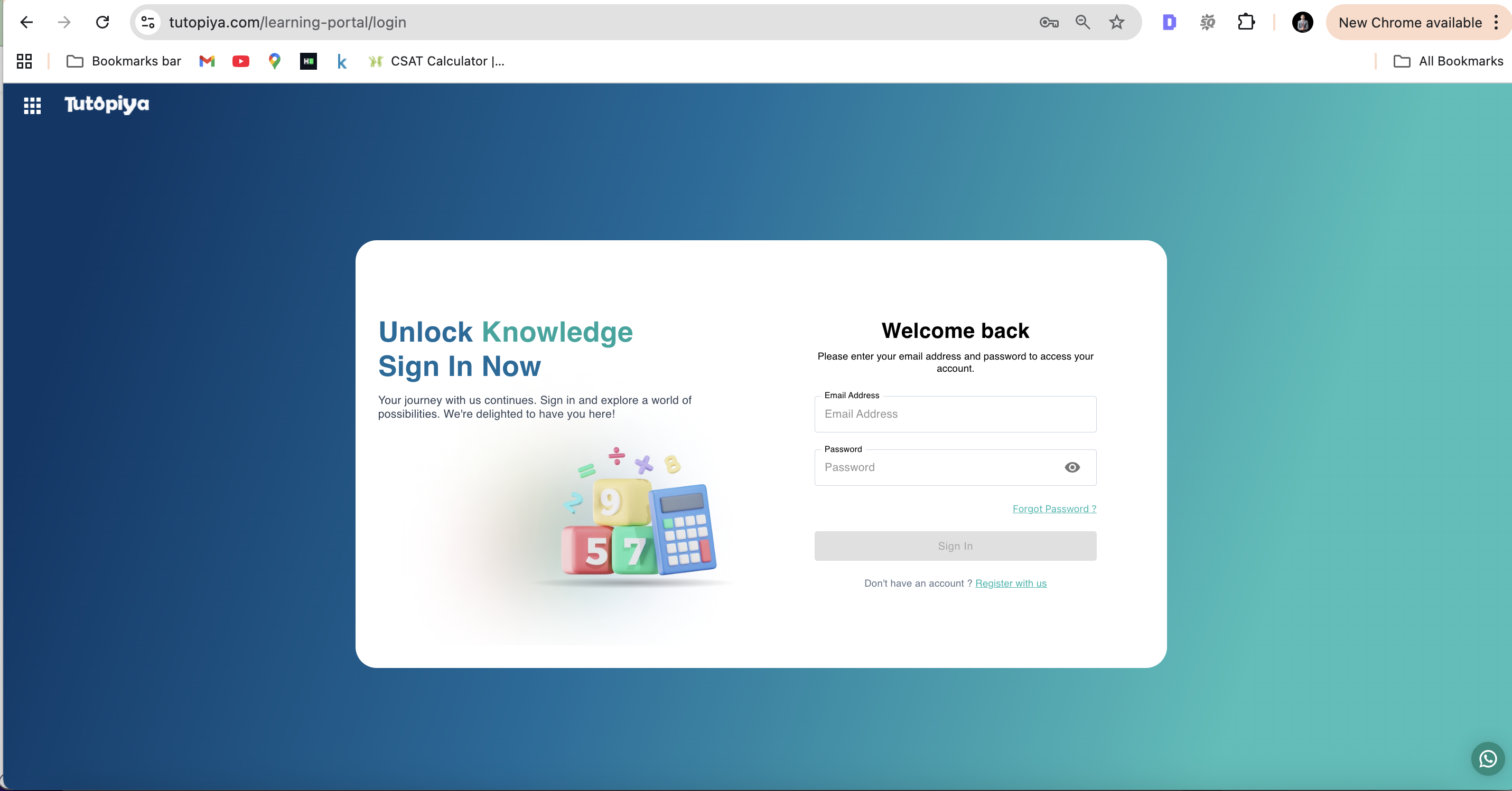
Login Page: Enter your email address and password to access your tutor account
Step 2: Course Selection
From your dashboard, click "View Course" on the course where you want to reschedule a class.
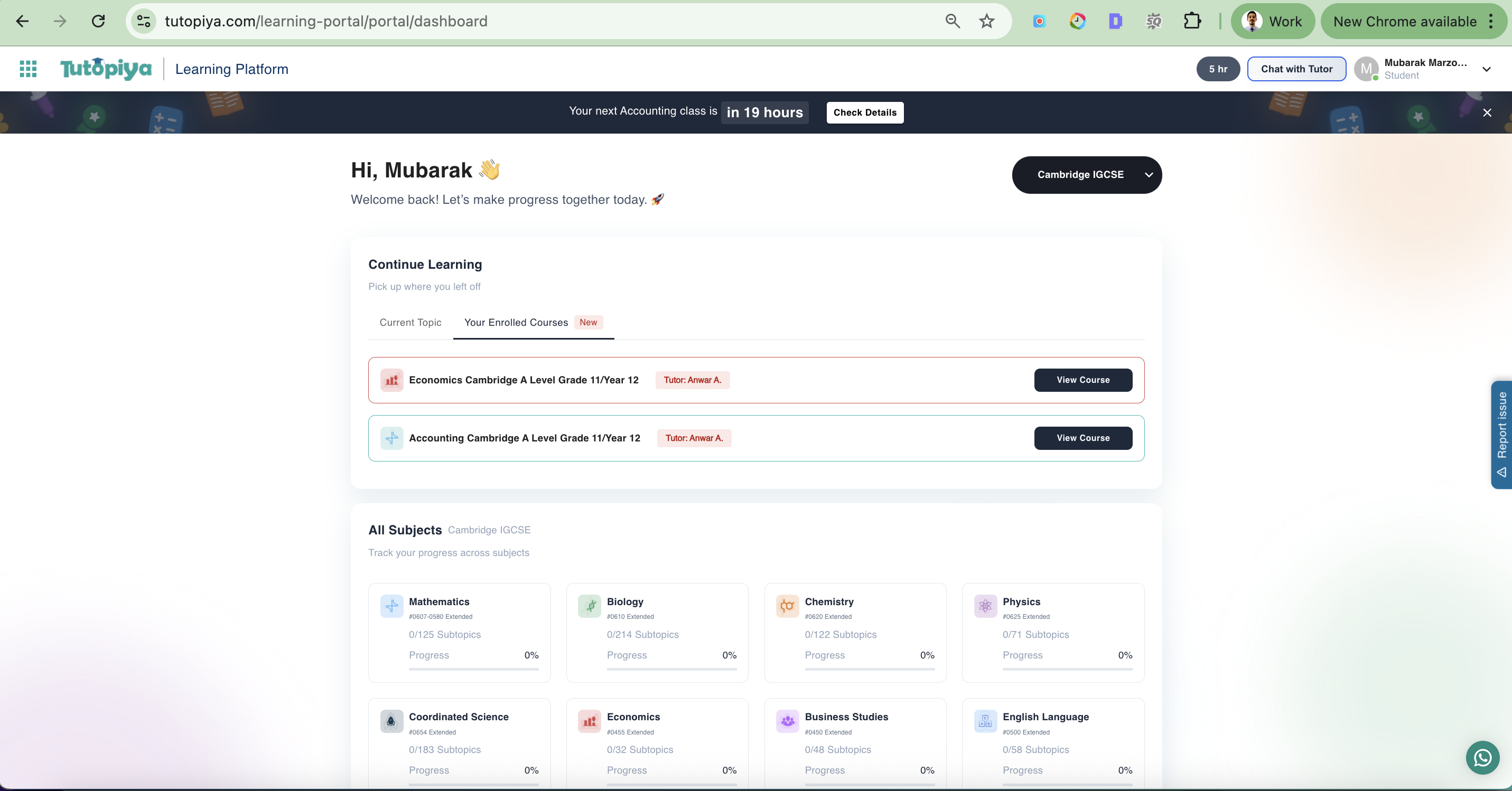
Dashboard: Your assigned courses are displayed with "View Course" buttons
Step 3: Reschedule a Class
Inside the course page, find the class you want to reschedule by expanding the class section, then click the 3 horizontal dots.
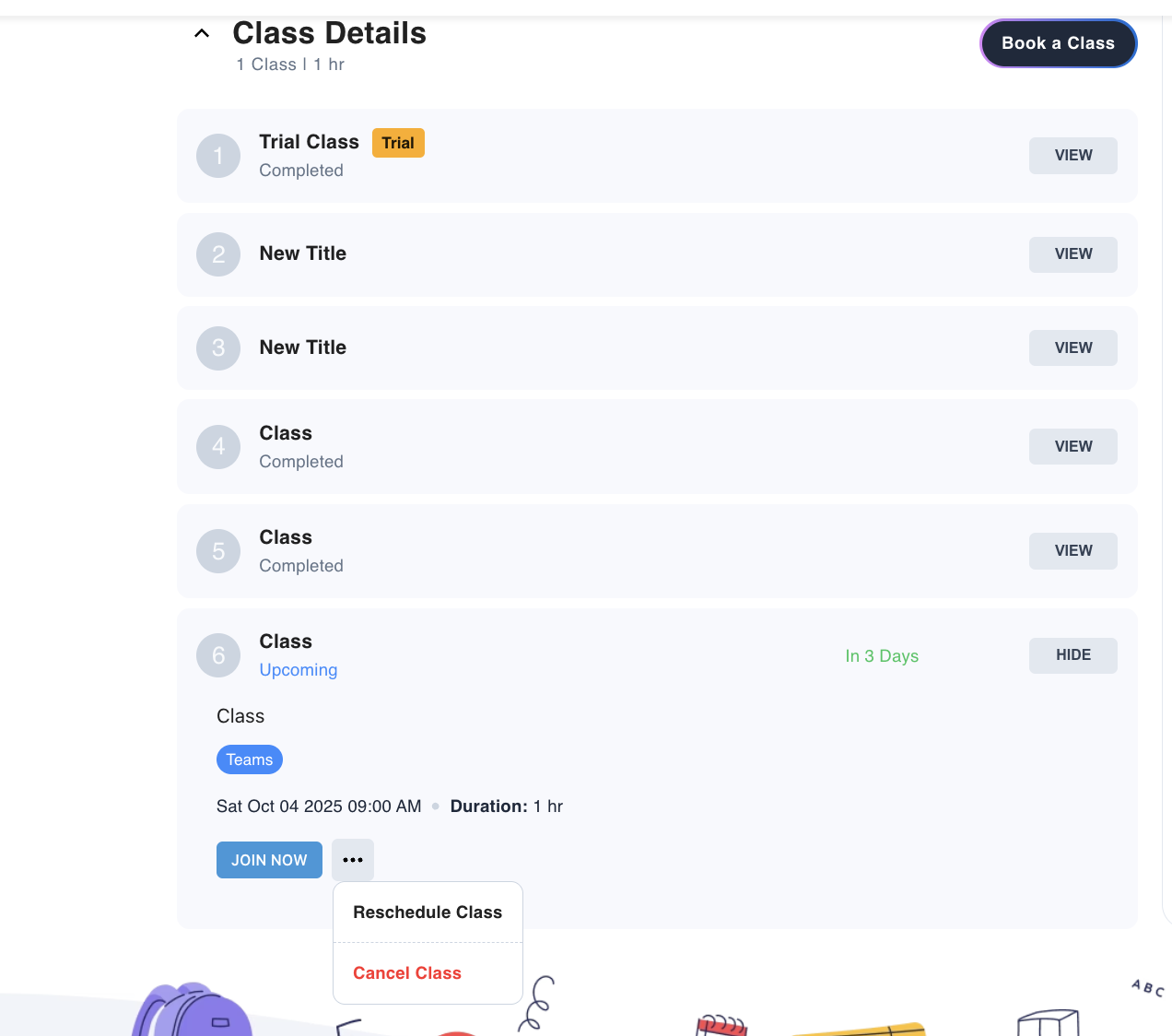
Class Section: Expand the class section and click the 3 horizontal dots to access reschedule options
Step 4: Select Date/Time and Submit
Choose the preferred Date/Time and a reason for the reschedule, then submit the request. The class will be moved to the new time.
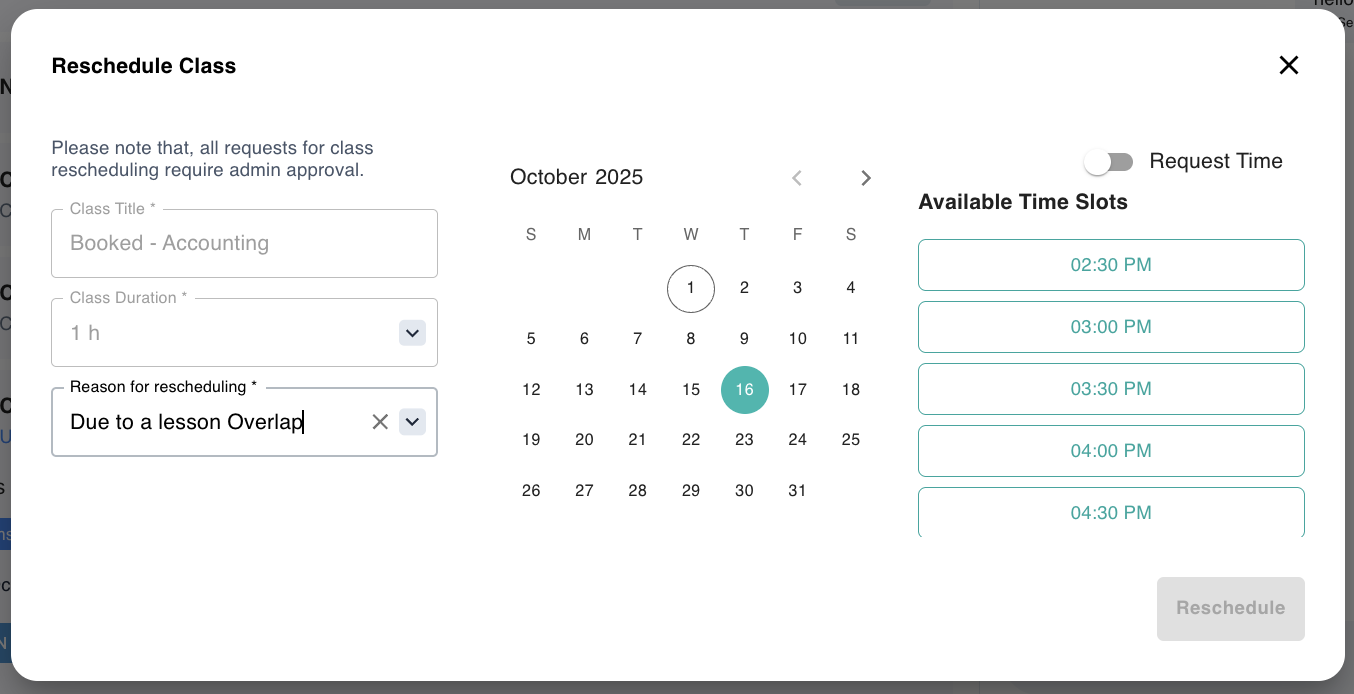
Reschedule Modal: Select the new date and time, provide a reason, then submit your reschedule request
Step 5: Confirm with Your Student
After rescheduling, send your student a quick message confirming the new time so there's no confusion about when the class will take place.
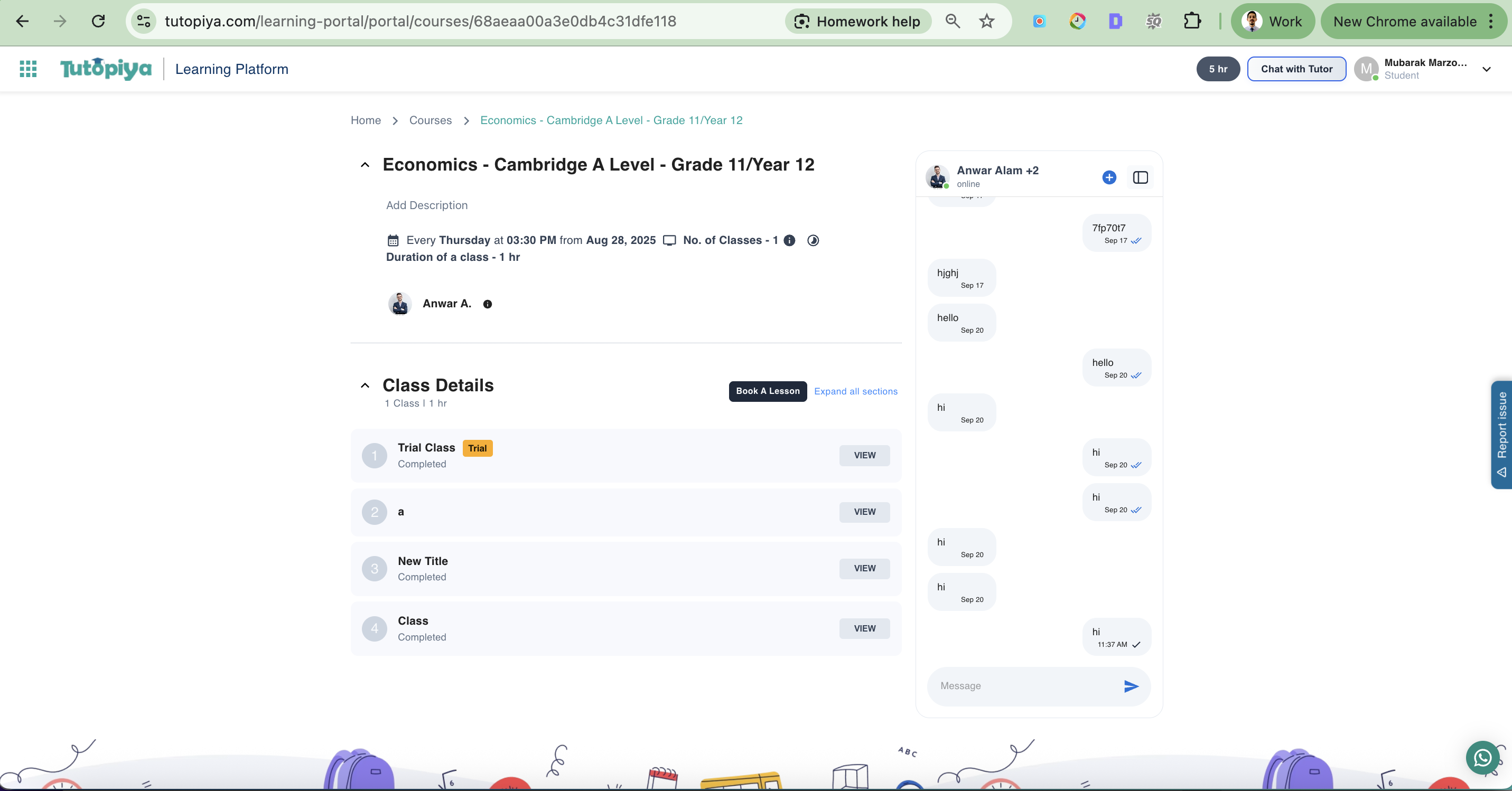
Chat Interface: Message your student to confirm the rescheduled class time
What Happens After Rescheduling?
Once you've successfully rescheduled a class:Confirmation Email
Both you and your student receive an email with the updated class details
Calendar Update
The course schedule is updated with the new class time
Student Notification
Your student is notified of the schedule change
Preparation Time
Both you and your student can prepare for the rescheduled session
Still have questions?
Our support team is here to help you with your class scheduling needs.