Booking Classes for Your Students
As a tutor, you can book classes directly for the students you teach using the free slots in your availability. This guide walks you through scheduling a class so both you and your student are ready for the session.
Step 1: Login
Login to the Tutopiya Portal at: https://www.tutopiya.com/learning-portal/login 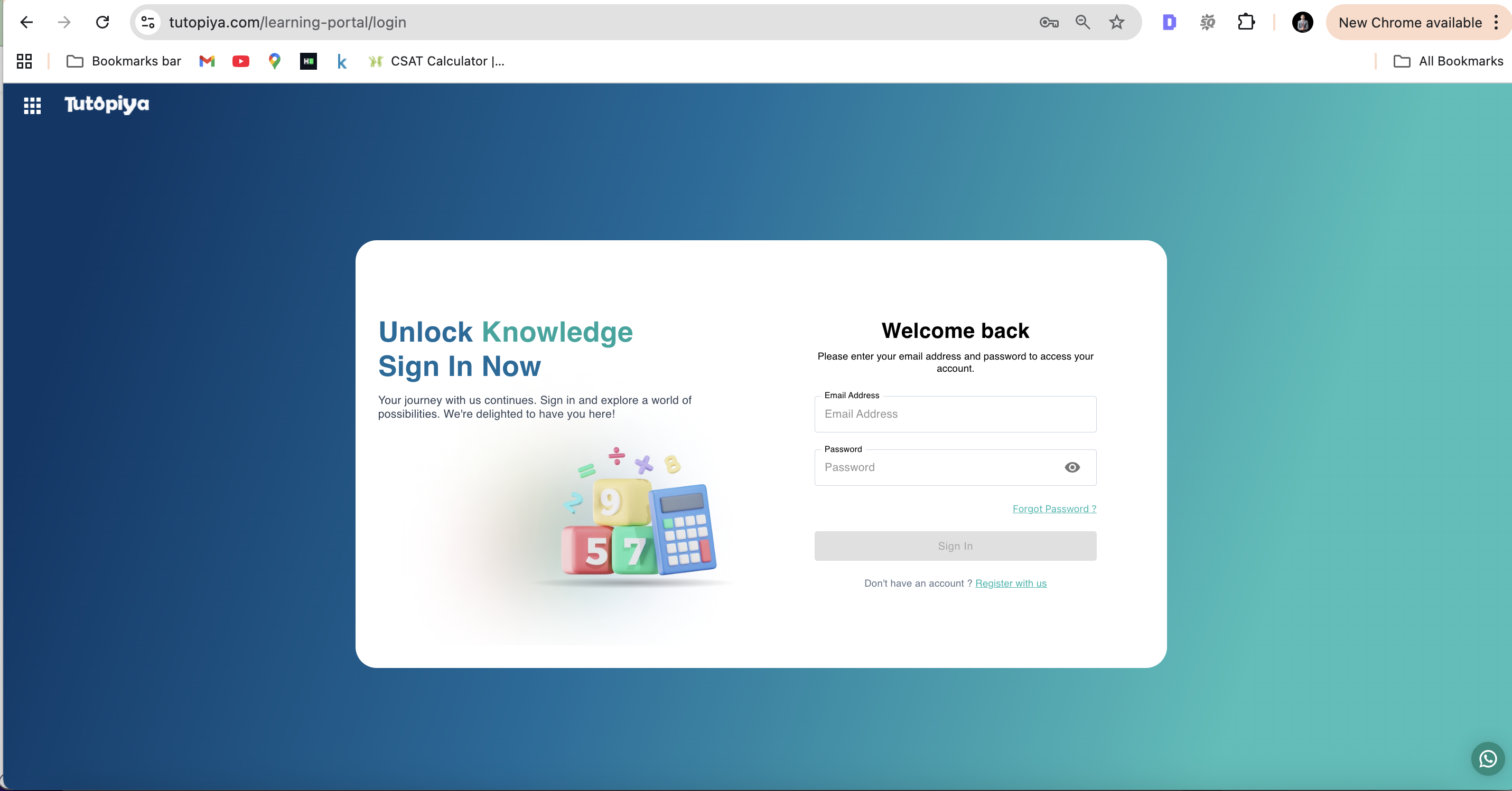
Login Page: Enter your email address and password to access your tutor account
Step 2: Course Selection
From your dashboard, click "View Course" on the course for the student you want to book a class with.
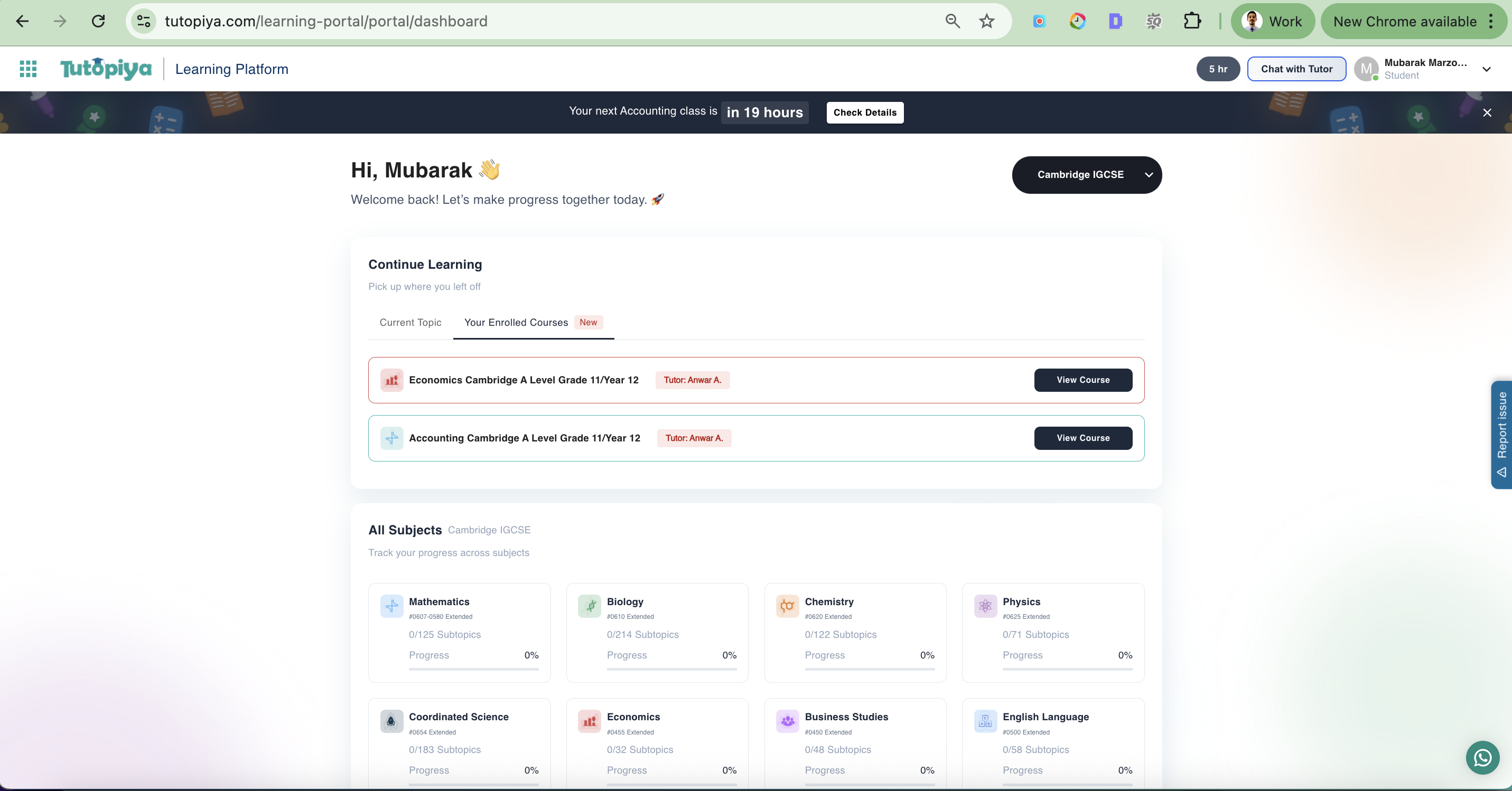
Dashboard: Your assigned courses are displayed with "View Course" buttons
Step 3: Booking a Class
Inside the course page, click the "Book a Lesson" button.
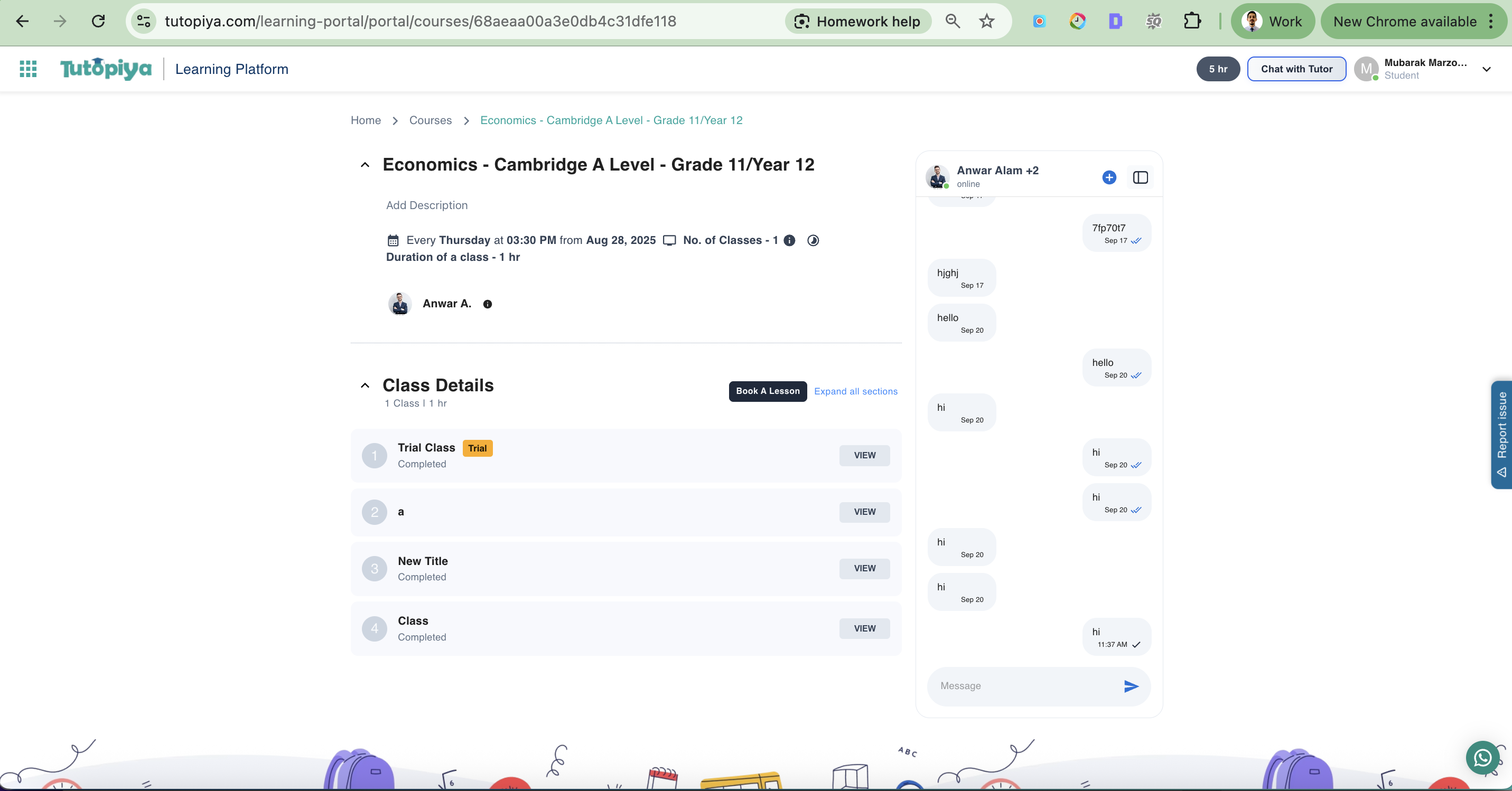
Course Page: The "Book a Lesson" button is shown in the Class Details section
Step 4: Date/Time Selection
Choose the preferred Date and Time for the class. The slots shown are your own available free slots, so the student can only be booked into times you are free.
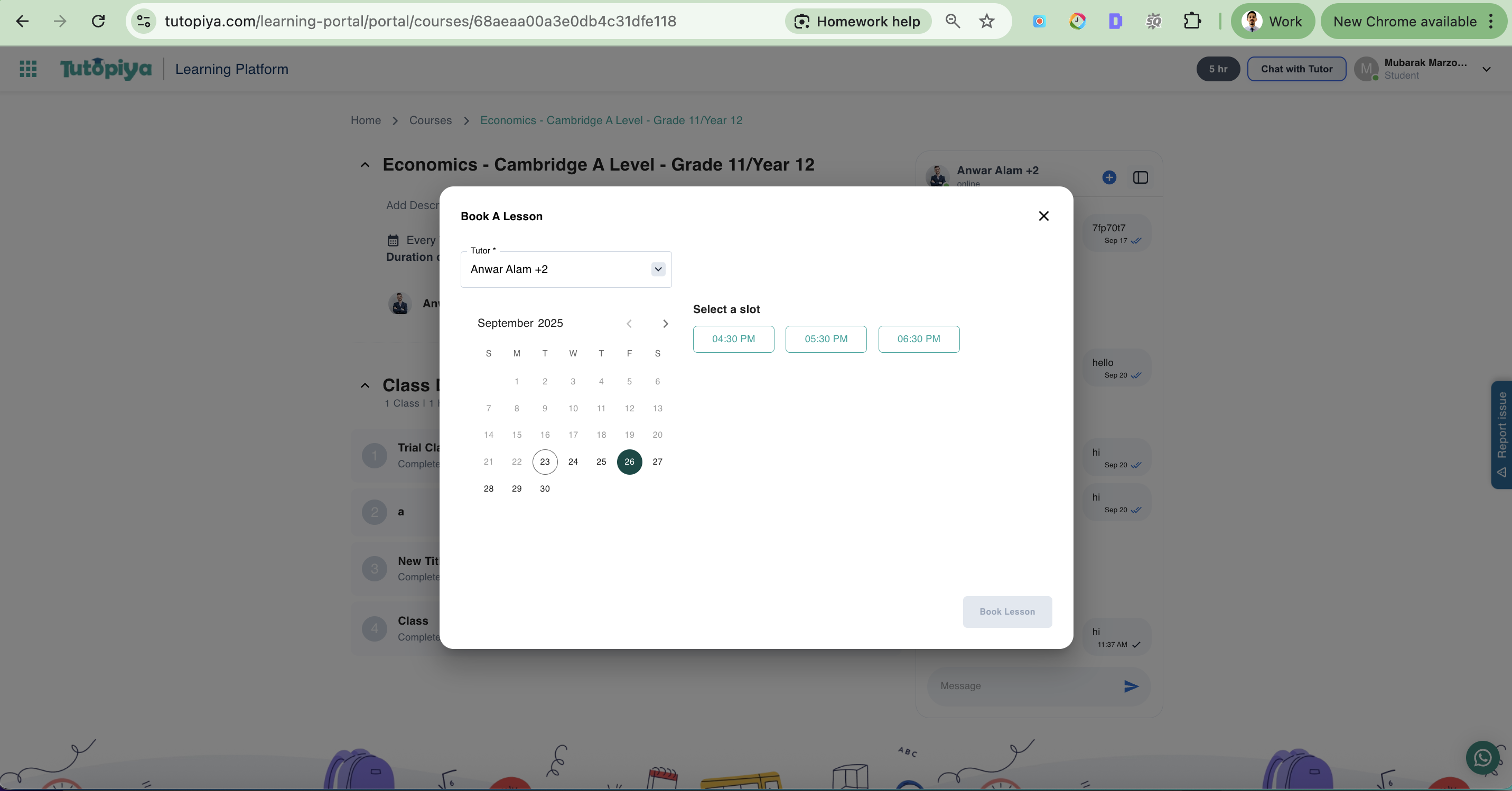
Booking Modal: Select the preferred date from the calendar and choose an available time slot
Step 5: Confirm with Your Student
(Optional) Before or after booking, it's good practice to confirm the time with your student via chat. If they request a slot that isn't in your current availability, update your availability first, then book the class.
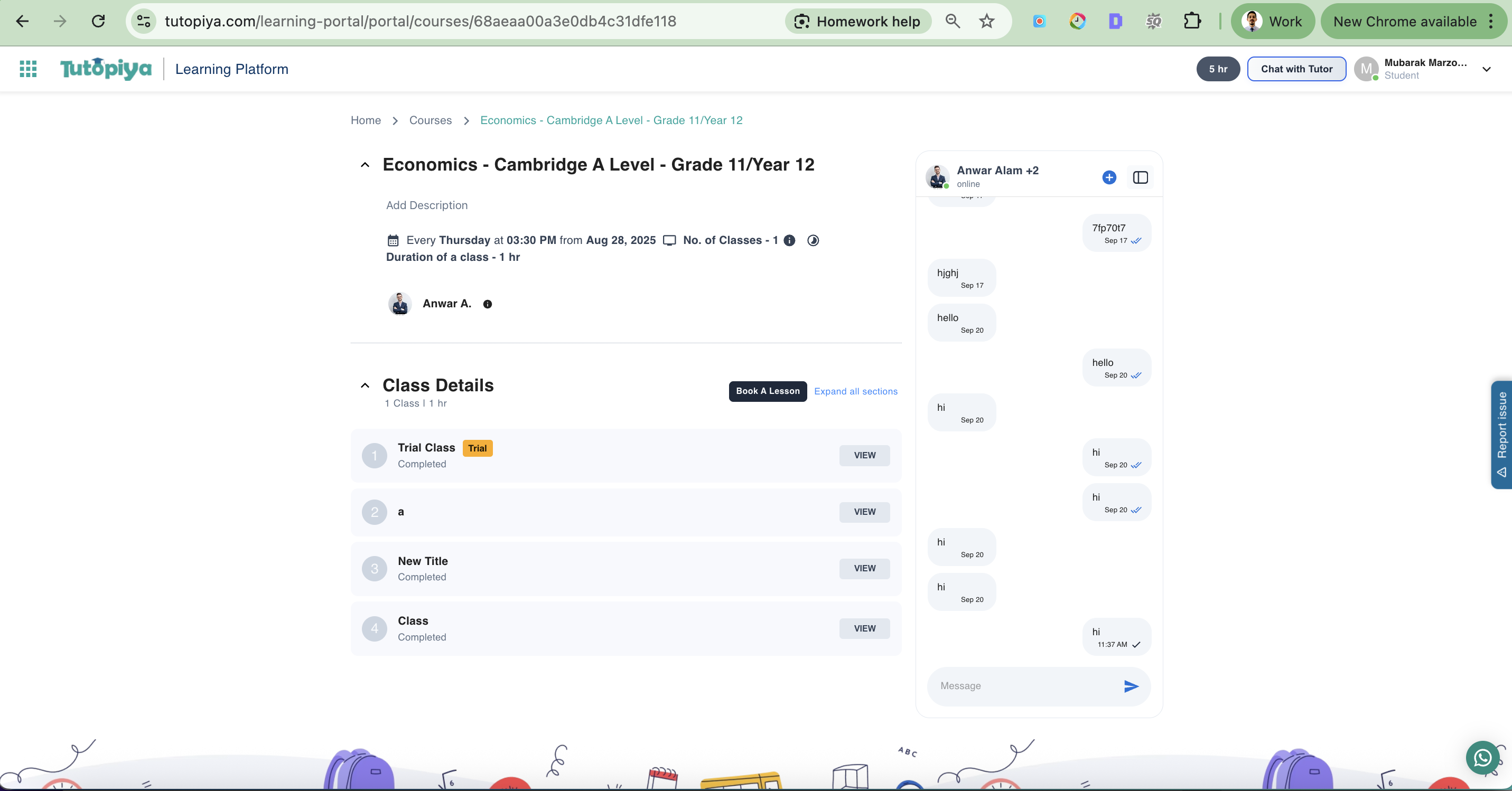
Chat Interface: Message your student to agree on a time before confirming the booking
What Happens After Booking?
Once you've successfully booked a class:Confirmation Email
Both you and your student receive an email confirmation with the class details
Calendar Integration
The class appears in the course schedule for both of you
Student Notification
Your student is notified that the class has been booked
Class Preparation
You can prepare your lesson material ahead of the session
Still have questions?
Our support team is here to help you manage your classes.
Ready to schedule your next class?
Head to the learning portal and book your students in for their next session.
Access Learning Portal